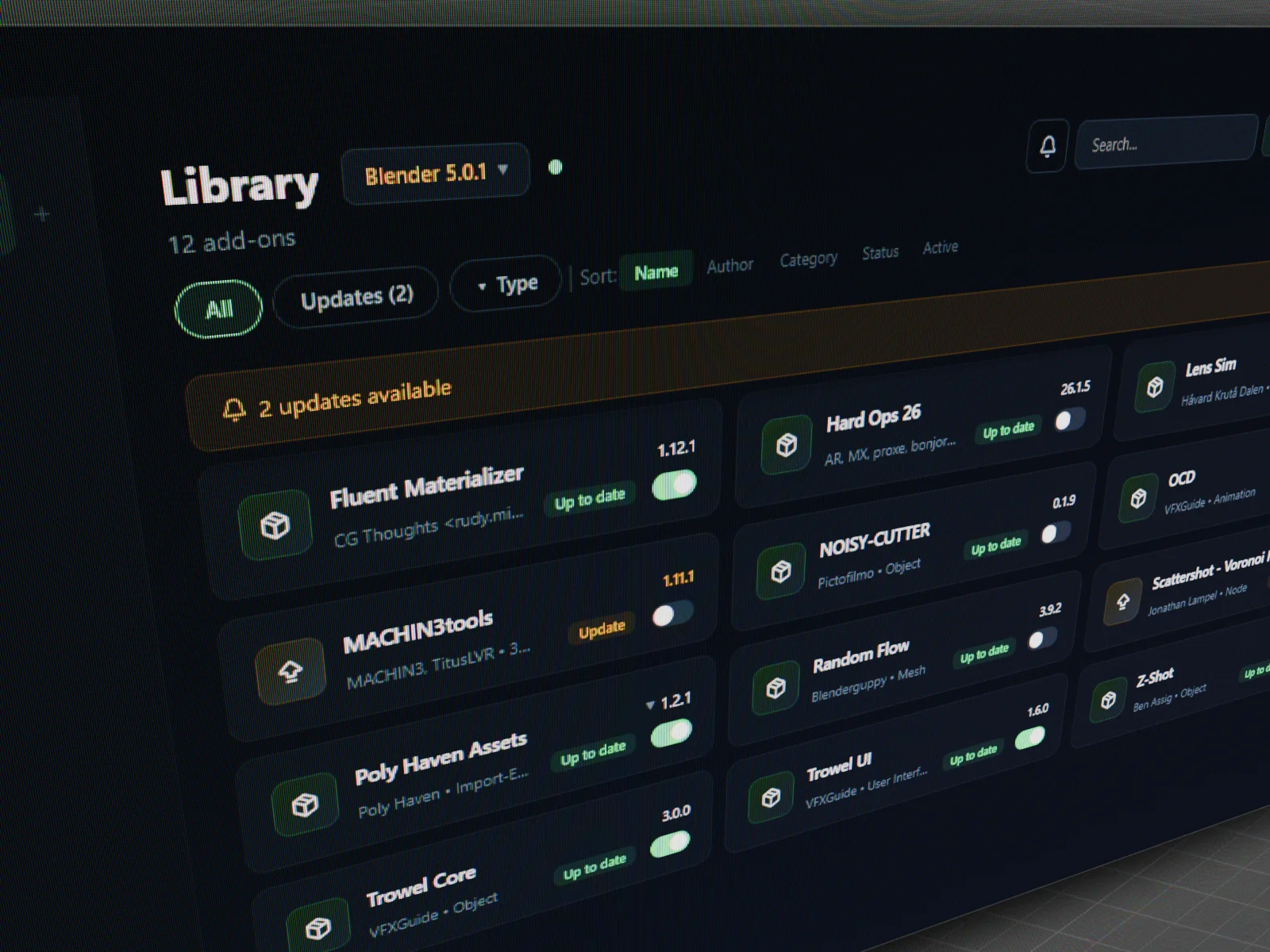
An add-on manager for Blender that actually keeps things in order.
See and manage all your installed add-ons for every Blender version in one clean dashboard — no more guessing what's where.
A proper view of your add-on collection. Real names, descriptions, compatibility info, and which versions you have on hand — without a pile of cryptic zip filenames.
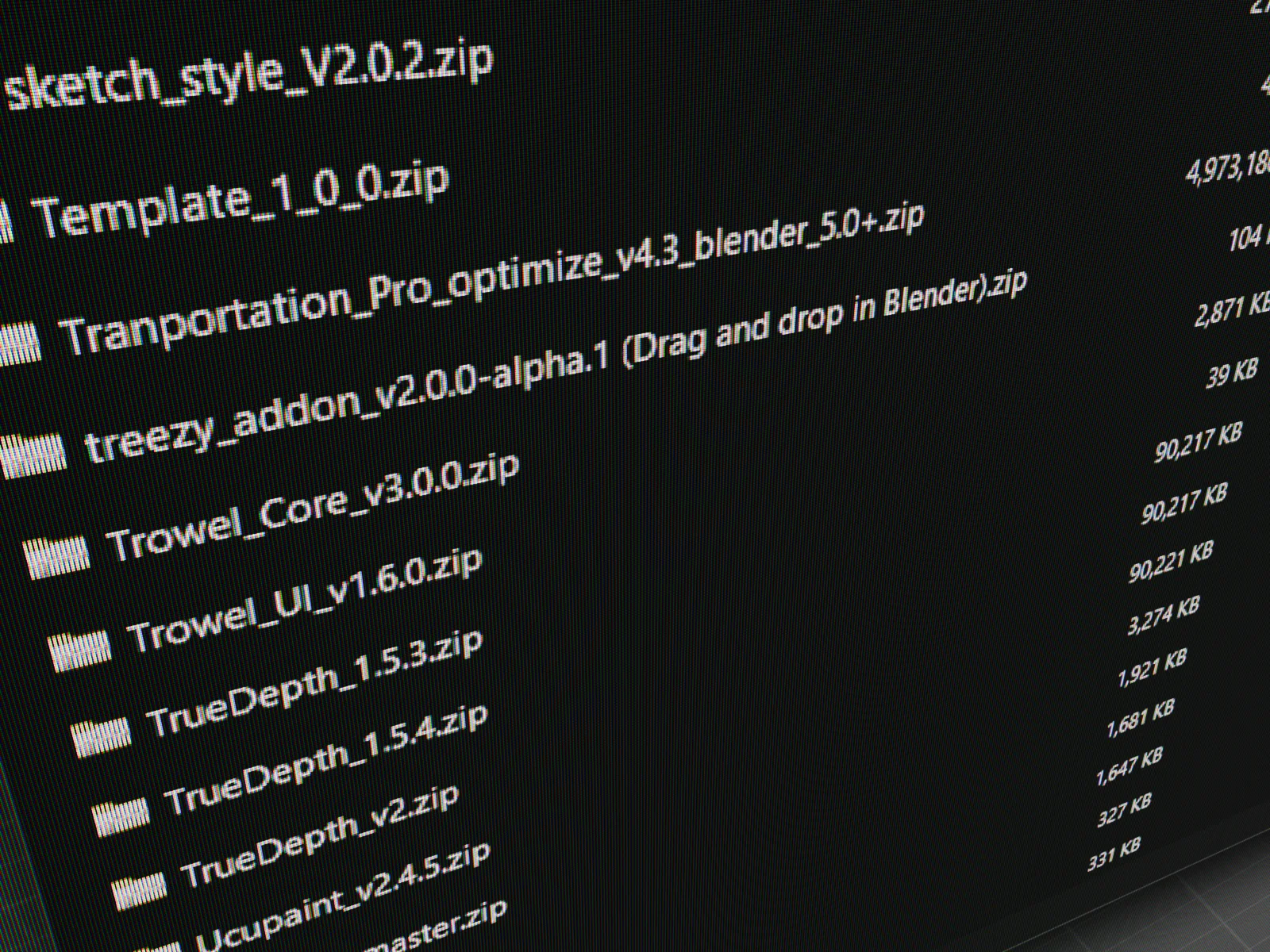

Drag a zip onto the Library, browse to one on your computer, or install from the Vault with full add-on info at your fingertips. Multiple paths, same clean result.
Swichr watches for newer versions of your add-ons and lets you know when one is out — so you never miss a release, even if the marketplace doesn't email you.
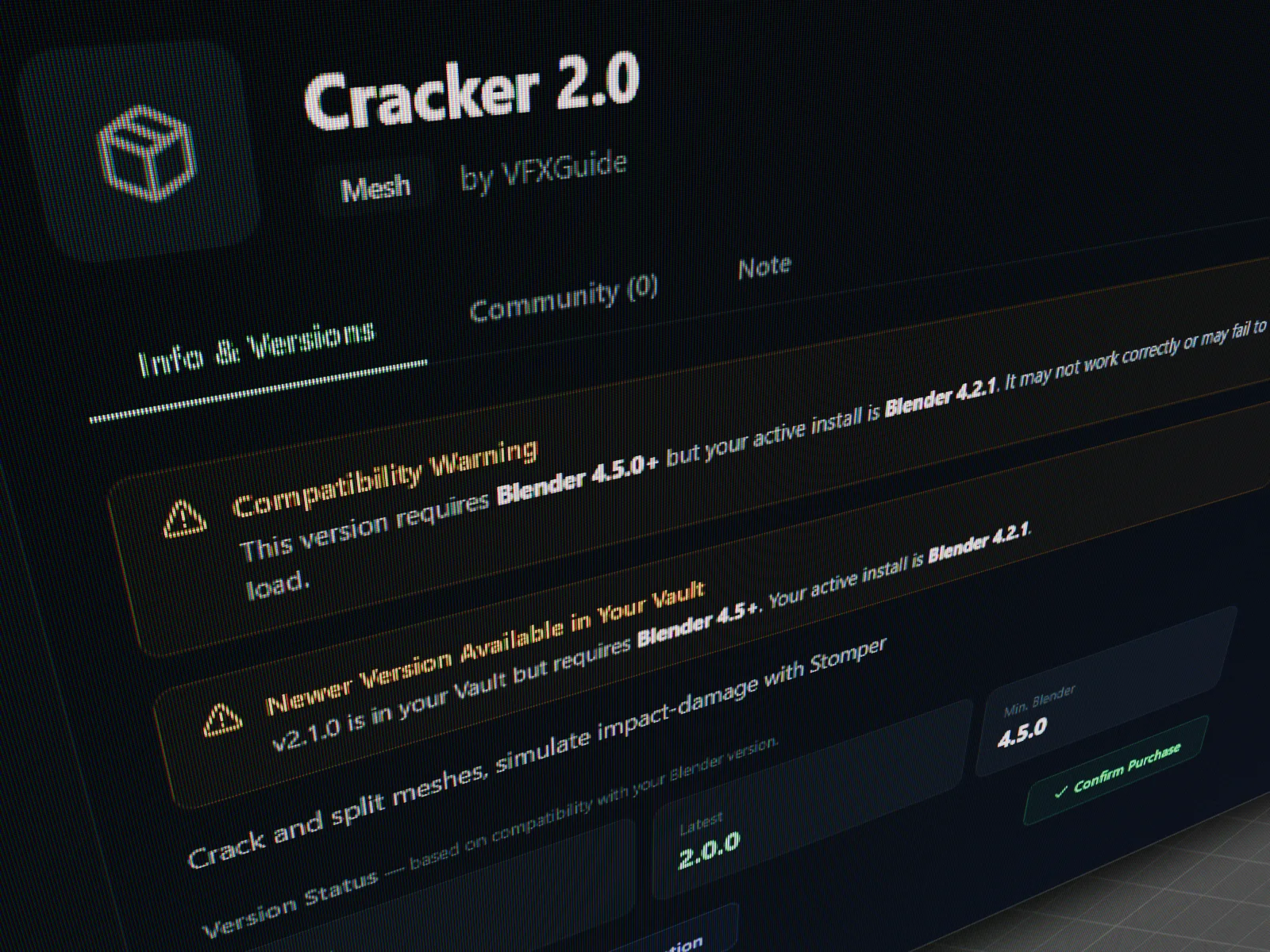
Clear alerts when an add-on doesn't match your Blender version — before you install it, and after, if you upgrade Blender later.
Swichr surfaces the version mismatch in plain language — what's required, what you're running, and which add-ons need attention.
Organize add-ons into groups like Hard Surface, Rendering, or Animation, and activate a whole group in Blender with one click.
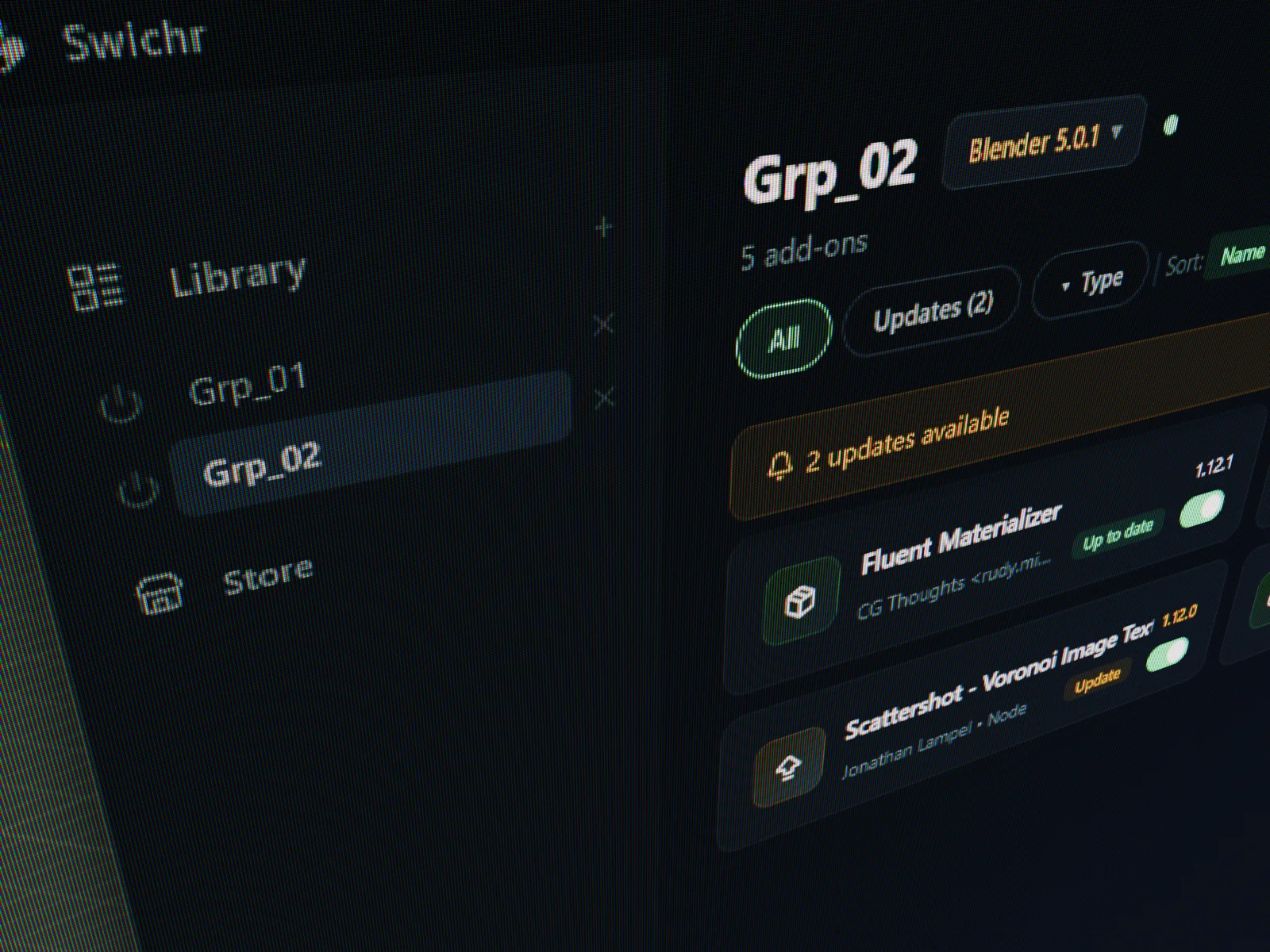
Activate a group and every add-on inside it turns on in Blender. Switch groups when you switch tasks — only the tools you need, when you need them.
Found a tutorial that nails an add-on? Share it — anyone else with that add-on will see it. Keep private notes for yourself too, for anything worth remembering.
Small companion app. macOS and Windows.
Pick the Blender versions you use. Swichr scans each one and finds the add-ons you already have.
Choose a folder where your add-on zips live. That's it — Swichr is ready, with or without Blender open.
No ads. No trials. No paywalls. Just free.
Install Swichr — organize your add-ons, track updates, and keep your work focused.
First-time downloads may trigger a security warning — this is normal for new software. See FAQ for how to proceed.